
UI concept
The UI concept of Data Analyzer basically differentiates between view and edit mode. Within the view mode, no views can be edited, or tags can be created. Depending on the user role, Edit appears in the header to switch to edit mode.
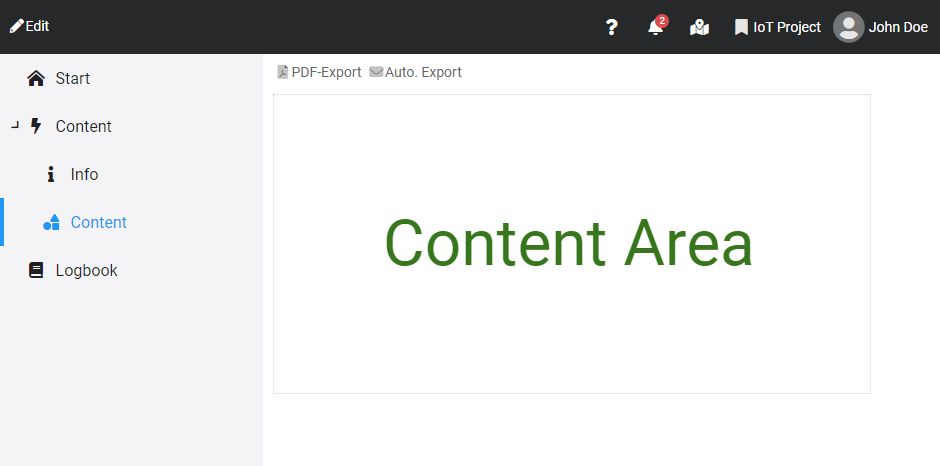
The right side of the header area displays additional cross-project information:
- Help: Linking of the online help and the most important support information
- Alerts: Contains all active alerts of the current project
- Map: Cross-project map view
- Project: Display of the project selection and the management
- User: Display of the user area
Navigation
Outside the editing mode, all views appear in the menu on the left side. Nested views can be expanded and collapsed. When the edit mode is active, the interface is changed over and the views can be found in the tree.
On mobile devices, the navigation pane is hidden and can be shown using the menu button.
PWA
Data Analyzer is available as a so-called Progressive Web App and can be installed in most web browsers and operating systems like a native application. This is detected by the web browser and displays (usually in the address bar) an Install button. After successful installation, Data Analyzer is available as an app without a browser address bar. On smartphones, the app is added to the homescreen and appears like an app from the store.
Installation on Android using Chrome
To install Data Analyzer as an app on an Android device using the Chrome web browser, proceed as follows:
- Open the menu and tap Add to Home screen
- Then select Install
Installation on iOS
To install Data Analyzer as an app on an iPhone or iPad using the Safari web browser, proceed as follows:
- Open the menu and tap Share
- Under Show more, tap Add to Home Screen